
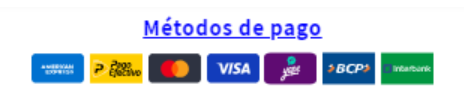
Payment Methods
This snippet displays a centered list of payment method icons including major credit cards and regional Peruvian payment options like Yape, BCP, and Interbank. It features a stylized blue underlined heading to build buyer trust during the checkout process.
- Custom blue underlined typography
- Centered flexbox layout for mobile responsiveness
- Hardcoded regional payment icons (Peru)
- Lightweight CSS-in-JS implementation
- Displaying accepted payment methods in the footer
- Adding local payment trust badges to product pages
- Showing custom payment gateways not supported by default theme icons
- Most Shopify themes
The code
1<!--INÍCIO ACEPTAMOS METODOS DE PAGO-->2<h2 class="custom-text">Métodos de pago</h2>3 <div class="payment-list" style="justify-content: center; padding-bottom: 0px; padding-top: 10px;">4 <div class="payment-list list-unstyled d-flex justify-content-center">5 <img class="payment-list__item" src="//cdn.shopify.com/s/files/1/0590/0963/0400/t/4/assets/amex.svg?v=4820021115096198109" width="35" height="30">6 <img class="payment-list__item" src="//cdn.shopify.com/s/files/1/0673/9787/7980/files/pago-efectivo-p.svg?v=1716947995" width="35" height="30">7 <img class="payment-list__item" src="//cdn.shopify.com/s/files/1/0590/0963/0400/t/4/assets/mastercard.svg?v=5325054530245235231" width="35" height="30">8 <img class="payment-list__item" src="//cdn.shopify.com/s/files/1/0590/0963/0400/t/4/assets/visa.svg?v=4363052815883027950" width="35" height="30">9 <img class="payment-list__item" src="//cdn.shopify.com/s/files/1/0673/9787/7980/files/yape-peru-1.svg?v=1716950534" width="35" height="30">10 <img class="payment-list__item" src="//cdn.shopify.com/s/files/1/0673/9787/7980/files/bcp-peruu.svg?v=1716951569" width="35" height="30">11 <img class="payment-list__item" src="//cdn.shopify.com/s/files/1/0673/9787/7980/files/Interbank-p-1.svg?v=1716950534" width="35" height="30">12 </div>13 </div>14 <style>15 .payment-list{16 margin-top: -15px;17 text-align: center;18 padding: 3px;19 }20 .custom-text {21 text-align:center;22 font-size: 15px !important;23 margin-bottom:20px !important;24 font-weight: 600;25 color: blue !important; /* Color del texto */26 text-decoration: underline !important; /* Subrayado del texto */27 text-decoration-color: blue; /* Color del subrayado */28 }29 </style>30<!--FINAL ACEPTAMOS METODOS DE PAGO-->
How to install Payment Methods on your Shopify theme
This snippet belongs in sections/footer.liquid, inside the footer section, above the copyright row. Expect the whole job to take about 5–10 minutes.
- 1From your Shopify admin, open Online Store → Themes, click the … button on your live theme and choose Duplicate. Always work on a copy so you can roll back instantly.
- 2On the duplicated theme, click … → Edit code to open the theme code editor.
- 3Open sections/footer.liquid in the file tree. If your theme uses different file names, search for the template that renders the area where you want the block to show up.
- 4Click Copy code on this page, then paste the snippet inside the footer section, above the copyright row.
- 5The snippet ships with its own scoped
<style>block, so you do not need to touchbase.cssortheme.css. If you prefer to keep CSS centralised, move the contents of the style tag into your theme stylesheet and delete the inline block. - 6Click Save, then hit Preview and check the block on desktop, tablet and mobile widths.
- 7When you are happy with the result, publish the duplicated theme from Online Store → Themes → Actions → Publish.
How to customise it
Every value below lives inside the snippet, so you can adapt Payment Methods to your brand without touching the rest of the theme.
- Sizing — adjust the font-size values (15px !important) and the padding so the block carries the same visual weight as the elements around it.
- Images — replace the placeholder image URLs with your own assets. Upload them under Content → Files in Shopify admin and use the generated CDN URL, or reference a theme asset with
{{ 'my-image.png' | asset_url }}. - Copy — rewrite the hard-coded text (for example “Métodos de pago”) in your own brand voice, and translate it if you sell in more than one language.
Common mistakes to avoid
These are the issues merchants run into most often when installing a snippet like this one.
- Editing the live theme directly. Duplicate it first — a single unbalanced Liquid tag can take a storefront down mid-campaign.
- Pasting the code into the wrong file. Dropped into
layout/theme.liquidinstead ofsections/footer.liquid, this block will render on every page of the store, including ones where it makes no sense. - Renaming the CSS classes in the markup but not in the style block, or vice versa. The class names have to match exactly or the styling silently disappears.
- Publishing without testing on a real phone. Most Shopify traffic is mobile, and layout problems almost always surface there first.
Performance notes
What this block costs you in load time, and how to keep that cost at zero.
- The CSS is inline and scoped to this block, so it adds no extra network request. At a few kilobytes it has no measurable effect on your Lighthouse score.
- Add
loading="lazy"plus explicit width and height attributes to every image in the snippet. That prevents Cumulative Layout Shift, which is a Core Web Vitals ranking factor. - Run PageSpeed Insights before and after you add the block so you have a concrete number rather than a guess.
SEO & accessibility
How to add this block without damaging your on-page structure or your rich results.
- Nothing in this snippet should replace your page
<h1>. Keep product and page headings intact and use<h2>or<h3>for the block's own heading so the document outline stays clean. - Write a descriptive alt attribute for every image. Empty or generic alt text is one of the most common accessibility and SEO issues on Shopify stores.
- If the block shows review or rating content, keep it consistent with the structured data your review app already outputs. Duplicating or contradicting rating markup can cost you the rich result entirely.
- The block does not create a new URL, so there is no canonical or indexing change to make. It improves on-page engagement signals rather than crawlability.
Payment Methods — questions merchants ask
Will this snippet work with my theme?
It is built with standard Liquid, HTML and CSS, so it works with Dawn and virtually every Online Store 2.0 theme, as well as most vintage themes. The only thing that changes between themes is the file you paste it into — if yours has no sections/footer.liquid, look for the equivalent template that renders the same area.
Do I need an app to use it?
No. This is theme code you own outright: no monthly fee, no third-party script tag, and no app that can break your storefront the next time it updates.
How long does it take to add “Payment Methods” to a store?
Most merchants have it live in under fifteen minutes — duplicate the theme, paste the code, adjust the colours and copy, preview on mobile, publish.
The styling looks broken after pasting. How do I fix it?
Confirm you copied the whole snippet including the closing style tag, then check whether one of your theme's own CSS rules is overriding it. If a theme rule wins, increase the specificity of the snippet's selector rather than scattering !important through the file.
Will it slow my store down?
Not meaningfully. It is inline markup with scoped CSS and at most a few lines of vanilla JavaScript — no external libraries, no extra HTTP request. Optimising your product images will always have a far bigger impact on load time.
Can I use it on a client store or a commercial project?
Yes. Every snippet in the MCO Hub library is free to copy, modify and ship on any store, including client work. Attribution is appreciated but not required.
Related snippets



Keep exploring
Guides
Shopify Liquid